Social Media Content Calendar Template: 8 Columns and a Filled Week
Social media content calendar template: plan a week of posts with 8 useful columns, a filled example, and a simple setup for each client.
By Social Media Manager Kit by Cosmo Suite · Editorial policy
Published · 8 min read
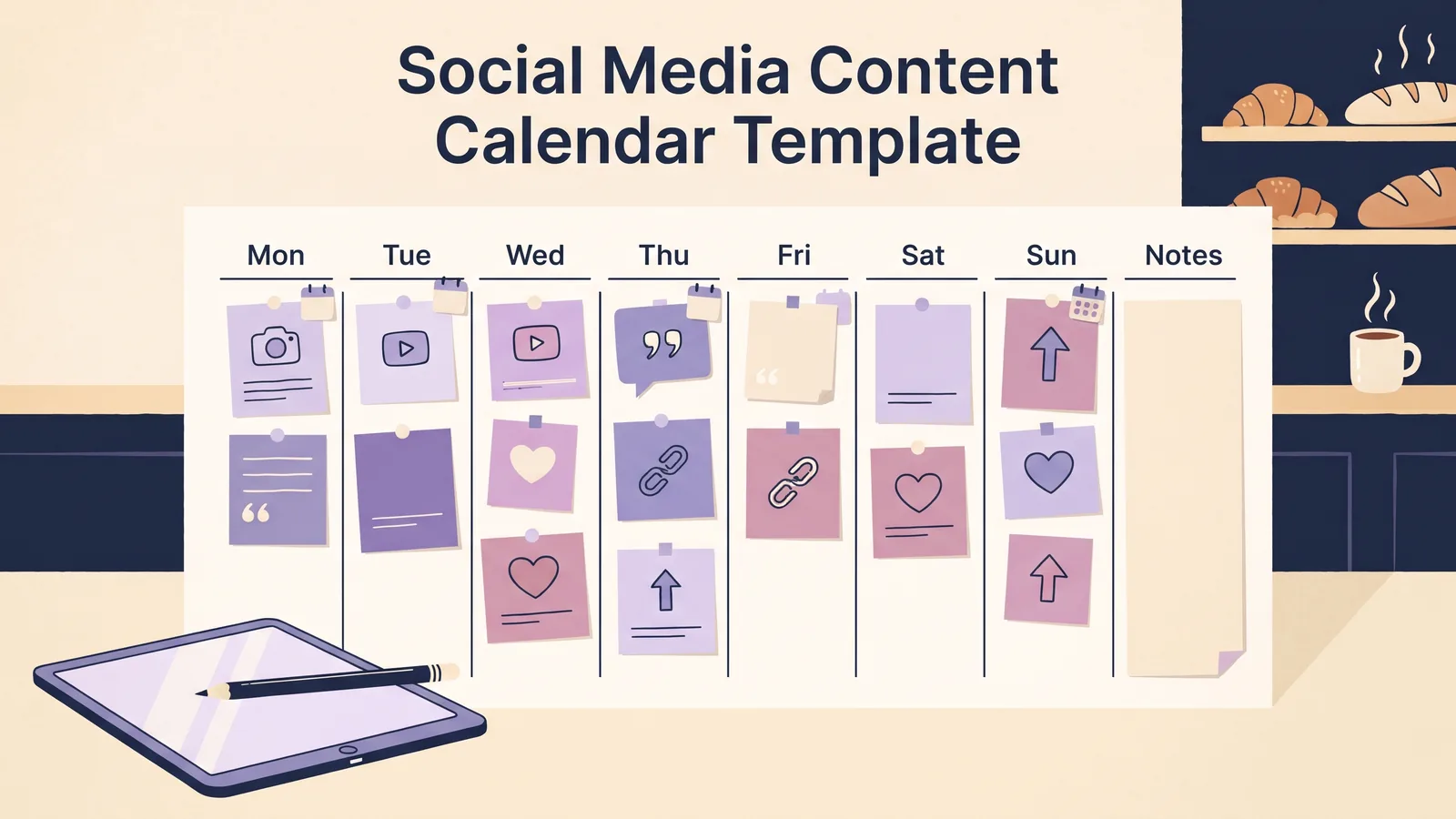
A social media content calendar is a dated plan for the posts a business intends to publish. A social media content calendar template gives you one place to connect each planned post with its channel, idea, copy, and creative asset. Start with eight columns and one row per planned post. Then choose a separate tab or workbook for each client, or add a client field if a master view is easier to manage.
The sample week below is for a fictional neighborhood bakery. It shows how to use a calendar without turning it into a second strategy document. These fields are the article's suggested structure. Check the live contents list when assessing a specific bundle. If you need planning and creative files in one place, review the Social Media Manager Kit's planning and Canva assets.
Key Takeaways
- Use one row for each planned post and keep the fields tied to decisions you need to make.
- Separate clients with tabs, workbooks, or a clear client field and review sharing access.
- Keep the calendar focused on planning. A spreadsheet does not publish a post or expose private competitor analytics.
What should a social media content calendar include?
A practical social media content calendar includes the publish date, client, platform, content pillar, format, post idea, caption and call to action, and asset link. These eight fields tell you what is planned, where it belongs, and what creative material the post needs.
| Column | What to record | Example |
|---|---|---|
| Publish date | Intended day for the post | Tuesday, 10 November |
| Client | Business or account name | Maple Street Bakery |
| Platform | Channel where it is planned | |
| Content pillar | The recurring subject area | Baking tips |
| Format | The shape of the post | Carousel |
| Post idea | The specific subject or angle | How to store a sourdough loaf |
| Caption and CTA | Draft opening plus the reader's next step | “Keep the crust crisp…” / “Save this tip” |
| Asset link | Where the design, photo, or video lives | Shared folder link |
Keep the topic field specific enough to distinguish one post from another. “Tips” is hard to act on. “How to store a sourdough loaf” gives the person preparing the copy and visual a clear starting point. A content pillar is a recurring subject area, such as baking tips or menu updates. Use that field when you want to scan the mix of topics across a month.
The eight fields are a starting point. Add a campaign or post owner only when you regularly need that information to coordinate the work. Keep detailed scripts and design files in their own locations, then link to them. A wide calendar with every production note becomes harder to scan than the work it is meant to organize. A social media scheduler is a publishing tool that connects to accounts and handles the steps for scheduling posts; a calendar can point to it without replacing it.
Use a simple row test before adding another column: what decision will this field help you make? The date answers when; the client and platform answer where the item belongs; the idea and format define what to prepare; the caption and asset link point to the working material. If a field has no clear use during planning, leave it out or store it with the detailed brief.
For example, “launch post” is too broad to guide the next step. “Instagram carousel introducing the autumn menu” gives the writer a topic and the designer a format. The linked asset can hold the slide copy and visual details, so the calendar remains a short index instead of a full production document.
For a client whose content includes visual explainers, the seven-role storytelling carousel template can help shape one idea before you add it to the calendar. The calendar still holds the scheduled topic and the asset link, while the working file holds the slide-by-slide copy.
What does a filled social media calendar week look like?
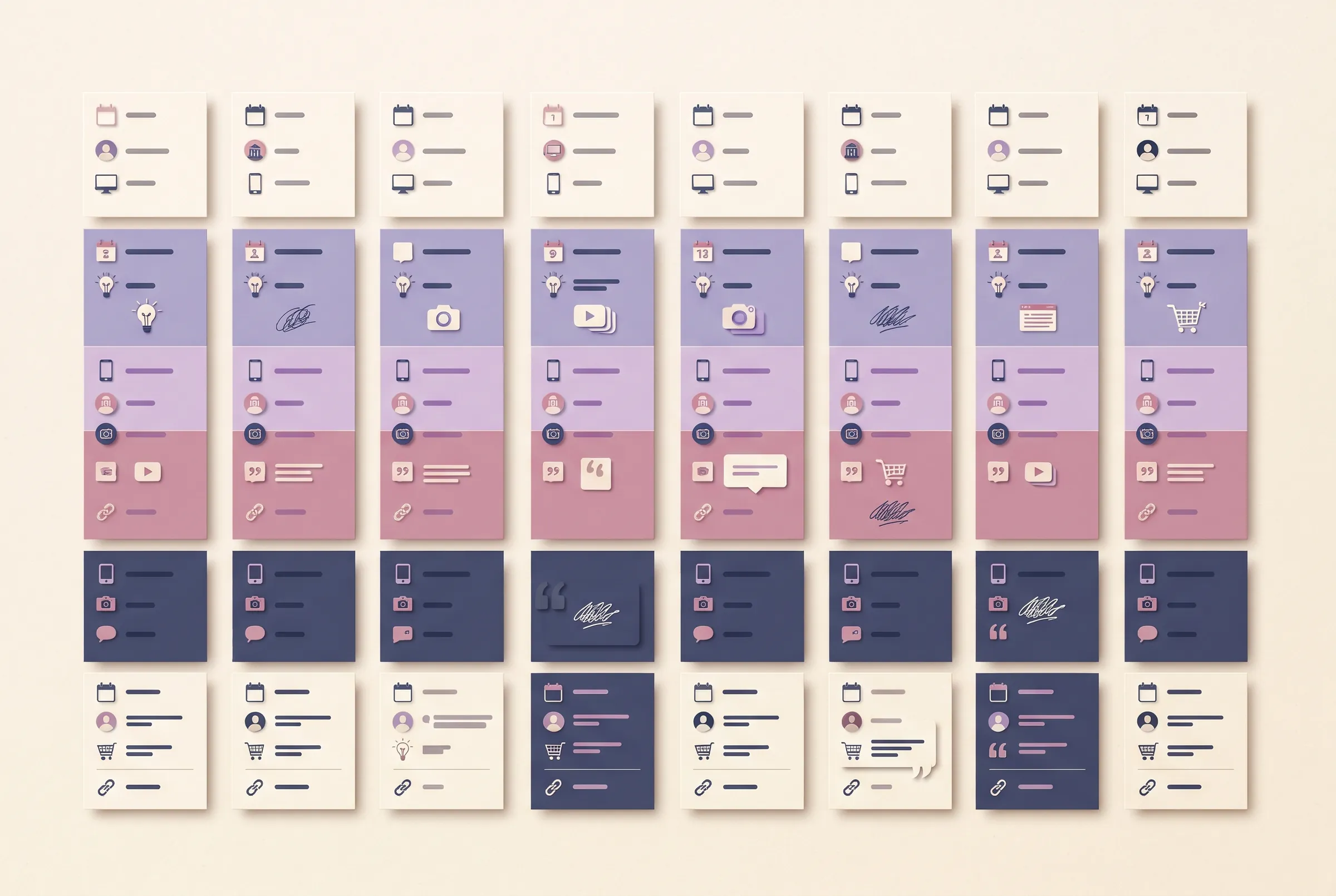
A filled calendar week should make the planned idea and next creative step easy to understand at a glance. The bakery and its sample posts below are fictional. They are not customer records or a result from the Social Media Manager Kit.
| Publish date | Client | Platform | Content pillar | Format | Post idea | Caption and CTA | Asset link |
|---|---|---|---|---|---|---|---|
| Mon, Nov 9 | Maple Street Bakery | Baking tips | Carousel | How to store sourdough | “Keep the crust crisp after you get home.” / Save this tip | /maple/nov-09-storage |
|
| Tue, Nov 10 | Maple Street Bakery | TikTok | Behind the scenes | Short video | Shape a morning roll | “Watch the dough take shape.” / Visit the shop menu | /maple/nov-10-shaping |
| Wed, Nov 11 | Maple Street Bakery | Menu | Photo | Today's pastry case | “A look at what is on the counter.” / Check today's menu | /maple/nov-11-case |
|
| Thu, Nov 12 | Maple Street Bakery | Local community | Event post | Saturday bread tasting | “Planning your weekend?” / See event details | /maple/nov-12-tasting |
|
| Fri, Nov 13 | Maple Street Bakery | Baking tips | Reel | Three ways to use day-old bread | “Before you toss yesterday's loaf…” / Share your idea | /maple/nov-13-leftovers |
The example uses a different topic and format across the week, but it does not imply that every client needs to publish every day or use every channel. Start from the service in scope and the material the client can provide. If one planned item is not ready, move the date and update the linked asset instead of leaving a stale row that looks current.
Notice what the table leaves out: approval status, performance predictions, and made-up engagement counts. If another part of your work tracks decisions or results, keep that information in the right tool. A calendar entry is a plan, not proof that a post went live or performed well.

How do you set up a social media content calendar in Google Sheets?
To set up a calendar in Google Sheets, create a spreadsheet, add the fields you will use as headers, and enter one planned post per row. Google's Sheets help page explains how to create, edit, format, and share a spreadsheet.
Start with a blank sheet or a copy of a template. Give the first tab a clear name, freeze the header row, and format the date column consistently. Turn on a filter so you can view a single platform or week without sorting the source rows into a new order. Google Sheets lets you choose whether a person can view, edit, or comment on shared files and folders, so check those settings before using a multi-client workbook in Google Sheets.
Choose how to separate clients before you fill the workbook. A small team may prefer one tab per client because the view stays focused. A master sheet with a client column can be easier to scan across accounts. If you use a shared workbook, confirm that each person should have access to all included client material before sharing it.
Keep long copy and artwork outside the cells. Put a short caption opening in the calendar, then link the full copy or design file. This keeps the weekly view readable and makes it easier to find the version that goes with each row.
How should a social media calendar change by platform?
Keep the planning columns stable, then add only the platform details that change the work. A video may need a vertical edit and a safe area for text; a static image may need a different crop. Put those production notes in the format or asset field rather than creating a different calendar for every channel.
The exact publishing specifications can change. TikTok for Business's small-business video guide currently recommends vertical 9:16 video and keeping text in safe zones for its ad guidance. Check the current organic or ad requirements in the platform you will use before exporting. Ad specifications are not automatically a rule for every organic post.
LinkedIn also offers Page admins built-in competitor analytics. Its competitor analytics guide describes follower and organic-content metrics available to Page admins, with availability varying by Page plan. A spreadsheet is useful for storing your observations; it does not replace each platform's own analytics or grant access to another account's private numbers.
For public advertising examples, use Meta's Ad Library. Treat an ad as evidence of a creative or offer that is being run, not evidence that it is profitable. You cannot infer spend, conversion rate, or sales from a creative alone.
How do you keep a content calendar useful after you fill it?
Review the next week as a planning view, then update dates and links when the work changes. A calendar becomes less useful when past ideas stay mixed with upcoming work or asset links point to an old draft.
Use a short repeatable routine:
- Add the post idea and platform before choosing a date.
- Set the date once the creative and copy can reasonably be prepared.
- Link to the working asset and keep its filename easy to recognize.
- Scan the coming week for repeated topics, missing links, or a format that needs more preparation.
- After publishing, move the item to an archive or mark the date as past so the active view remains focused.
The content calendar for one client should also connect to the wider Social Media Manager Kit overview, which explains how its listed planning files fit alongside client paperwork and creative materials. Keep the calendar responsible for planned content. Use a publishing tool for scheduling and a platform's account analytics for results.
If you want a starter set of planning files, the Social Media Manager Kit's content calendar and post planner are listed for that work.
Why trust this article?
The Social Media Manager Kit team at Cosmo Suite publishes this guide. The example week and column recommendations were written for this article. They are not customer records or product screenshots. Platform details were checked against the linked help pages on 28 October 2026. The site's about page explains the publisher, and its editorial policy describes how the team handles its content. Confirm platform settings again when you prepare a post.
Where Social Media Manager Kit fits
Social Media Manager Kit lists a content calendar among its planning files, along with a post planner and hashtag planner. The public contents list describes the bundle; the eight columns and bakery week in this article are an independent example, not a representation of the calendar file's exact fields.
If you want those planning files alongside editable Canva content assets, review the Social Media Manager Kit contents. Check the live list against your service before choosing a bundle. The kit is a set of reusable working materials; you still choose the publishing process and platform tools that fit each client.
Frequently asked questions
What should a social media content calendar include?
Start with the publish date, client, platform, content pillar, format, post idea, caption and call to action, and a link to the asset. Add only fields that help you plan or find the work. Keep client-specific information in a separate tab or workbook when that makes access easier to manage.
How do I create a social media calendar in Google Sheets?
Create a spreadsheet, add one header row for the fields you use, and place one planned post on each row. Freeze the header, format the date column, and use filters to view a client, platform, or week. Test the sharing settings before you add client material.
How far ahead should I plan social media content?
Plan far enough ahead to prepare the copy and creative for the service you provide, then review the next week before it begins. The right window depends on the client, channel, and how often the plan changes. Leave room to adjust dates when current events or business needs shift.
Should I use one calendar for every client?
You can use one workbook with a clearly labeled client field or keep a separate tab or workbook for each client. Choose the layout that makes the work easy to find and keeps each client's material separate. Check file permissions before sharing any version.
What is the difference between a content calendar and a scheduler?
A content calendar records what you plan to publish and when. A scheduler connects to social accounts and handles publishing steps. A calendar can point to the asset and copy, but it does not confirm that a post is scheduled or live.
Can a spreadsheet show competitor performance?
A spreadsheet can store public observations such as visible posts or reactions, when a platform exposes them. It cannot reveal private account data such as another account's reach, impressions, clicks, or saves. Use platform tools for your own account analytics and label estimates clearly.