Storytelling Carousel Template: A 7-Slide Framework
Storytelling carousel template for seven clear slides, from hook to takeaway. Plan a useful story, add a real example, and choose a focused next step.
By Social Media Manager Kit by Cosmo Suite · Editorial policy
Published · 11 min read
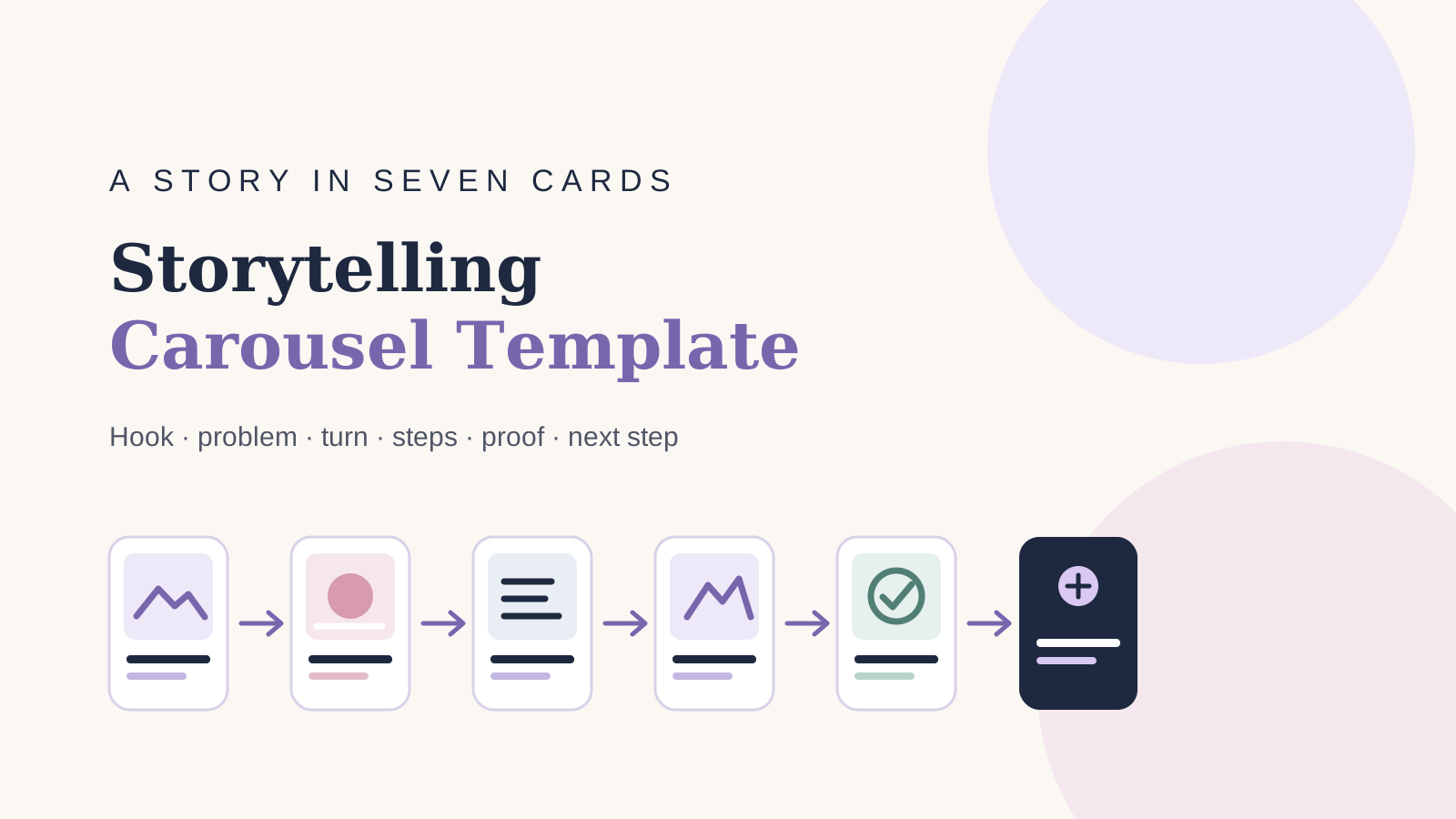
A storytelling carousel template is a reusable slide plan that gives each card a role, so the post reads as one small story instead of a stack of unrelated graphics. For a social media manager, that structure makes the next design decision easier: what should the audience understand first, and what should they do with it?
The seven-slide sequence below works for an educational post, a service explanation, or a product walkthrough. It leaves space for a real example and a next step without requiring a customer quote or a result you cannot prove. If you also need a repeatable visual base, Canva templates for social media clients can sit alongside the story outline.
What should a storytelling carousel include?
Storytelling carousel is a set of related slides that moves one idea from an opening hook to a useful takeaway. Each slide has a distinct role, such as naming a problem, explaining a step, or showing evidence. The sequence should make sense in order. It should also keep enough context on each slide to remain clear on its own.
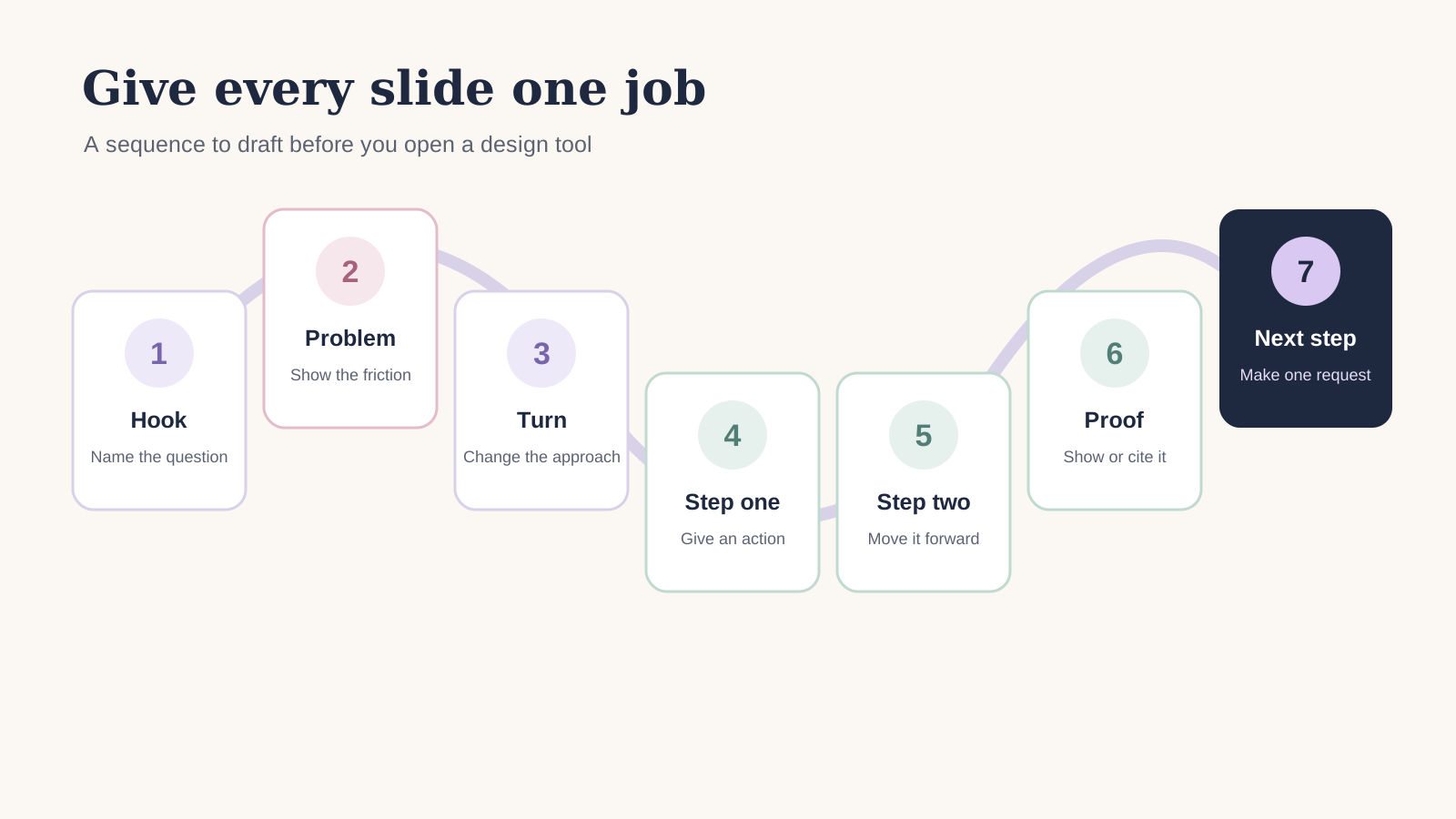
A practical storytelling carousel includes a hook, a problem, a turn, two useful steps, a proof slot, and a next step. Each slide has one job. The reader should be able to tell why the next slide belongs in the sequence.
That is a planning model, not a rule from Instagram. The platform allows up to 20 photos or videos in a carousel post, according to Instagram's multi-photo post guidance. The limit describes the publishing format; it does not tell you how many slides your story needs. A seven-slide draft is a manageable place to begin, and you can cut a slide if it repeats an idea.
| Slide | Story job | What to put on it |
|---|---|---|
| 1 | Hook | Name the specific question or outcome |
| 2 | Problem | Show the friction the reader recognizes |
| 3 | Turn | Introduce the change in approach |
| 4 | Step one | Give the first useful action |
| 5 | Step two | Continue with a distinct action |
| 6 | Proof slot | Demonstrate, cite, or show a labeled example |
| 7 | Call to action | Give one relevant next step |
Nielsen Norman Group's carousel guidance focuses on website interface carousels. It does not cover social media slide posts. Still, its advice points to a useful check: people may see only one frame, so make the first slide clear. Do not rely on every reader swiping through the full sequence. Keep the central idea visible in the caption too.
This sequence separates the story from the design. You can change colors, type, and images for each client while keeping the slide roles as a planning aid.
How do you turn the seven roles into one story?
To turn seven roles into one story, choose a real subject and write one sentence for each slide. The hook names the question, the problem explains the friction, and the turn offers a useful change in approach. Two steps show how to act. A proof slide demonstrates or cites something real, and the final slide offers a relevant next step.
Write the story in one sentence before you open Canva. A useful line names the audience, the problem, and the small change the post will explain. Then give each slide one sentence that moves from that starting point to the next action.
For a hypothetical example, imagine a neighborhood bakery that wants to explain how to choose a cake size for a small gathering. The sequence can stay useful without claiming that a particular post increased sales or brought in customers:
- Hook: Choosing a cake size for a small gathering? Start with the serving plan.
- Problem: The guest count alone does not show whether people want a small slice or a larger serving.
- Turn: Decide the serving style before comparing cake sizes.
- Step one: List the guests who will eat cake, rather than counting everyone invited.
- Step two: Check the bakery's own serving guide and ask about the shape you want.
- Proof slot: Show the bakery's published serving chart or a labeled example cake beside its guide.
- Call to action: Save the guide or contact the bakery with your guest count.
The example uses a source the business would need to provide. The writer should not invent a serving chart, quote a customer, or imply that the bakery has tested this exact post. If the bakery has no published guide, the proof slide can instead show how to ask the question or link to a relevant source.
Example: adapt the kit's content calendar
The Social Media Manager Kit lists a content calendar among its planning files. For example, the sample below uses that real kit item as its subject. The copy is original and does not reproduce the file. It makes no claims about results or the calendar's exact fields.
| Slide | Sample copy |
|---|---|
| 1. Hook | Planning posts for a client? Start with the next publishing date. |
| 2. Problem | A list of ideas does not show what needs to be ready first. |
| 3. Turn | Give each planned post a date and a clear next action. |
| 4. Step one | Choose the channel and format before drafting the post. |
| 5. Step two | Mark whether the copy, visual, and approval are ready. |
| 6. Proof slot | Example: show a clearly labeled sample calendar row. |
| 7. Next step | Review the upcoming week and choose one item to prepare. |
The sample row is an illustration, not a screenshot of the kit. Replace it with approved client information when adapting this idea.
Each card should carry enough context to make sense on its own, while its last phrase can create a reason to swipe. The problem slide can name the decision the reader is stuck on. The turn can offer a better way to make that decision. The steps then show how to apply it.
What makes a strong carousel hook?
A strong carousel hook tells the intended reader what question the post answers. It uses specific language that matches the slides that follow. For example, a useful hook can invite attention without promising a result. Keep the first card readable. Then use the next cards to explain the context and steps.
A strong hook names the reader's situation or the question the post answers. It gives a reason to continue without promising a result the rest of the carousel cannot support.
Try one of these starting shapes, then replace the bracketed words with a real audience problem:
- “Before you [action], check these [decision points].”
- “Choosing between [option A] and [option B]? Start with [criterion].”
- “A simple way to explain [topic] to [audience].”
- “What to check before you [task].”
The first card should be legible at a glance. Keep its headline focused on one thought, and move qualifications or background to the next card. Avoid guaranteed outcomes, artificial urgency, and vague claims such as “this changes everything.” A clear question is enough when the answer is useful.
The hook should also match the caption. If the slide promises a checklist, the caption can explain who it is for and what to do with it. Caption templates for social media posts can help shape the text that accompanies the carousel; keep the slide copy and caption from repeating each other line for line.
How should the problem and turn work together?
The problem slide names the specific point of confusion, and the turn changes how the reader can approach it. Keep the tension proportionate to the topic. A how-to carousel needs a useful distinction, not an inflated crisis.
For a post about preparing a content plan, the problem might be that ideas are collected without a decision about format or date. The turn could be to choose the channel and post type before filling a calendar. That gives the next slides something practical to explain.
Use the same test for a client's service or product:
- Can the reader identify the situation in one sentence?
- Does the turn add a real choice, process, or perspective?
- Do the steps follow from that turn?
- Can a reader understand the point without seeing the caption?
If the problem and turn could be swapped without changing the story, they may be too general. Rewrite them with a concrete decision or remove the extra slide. The goal is a sequence that progresses, not a fixed number of cards.
What belongs in the proof slot?
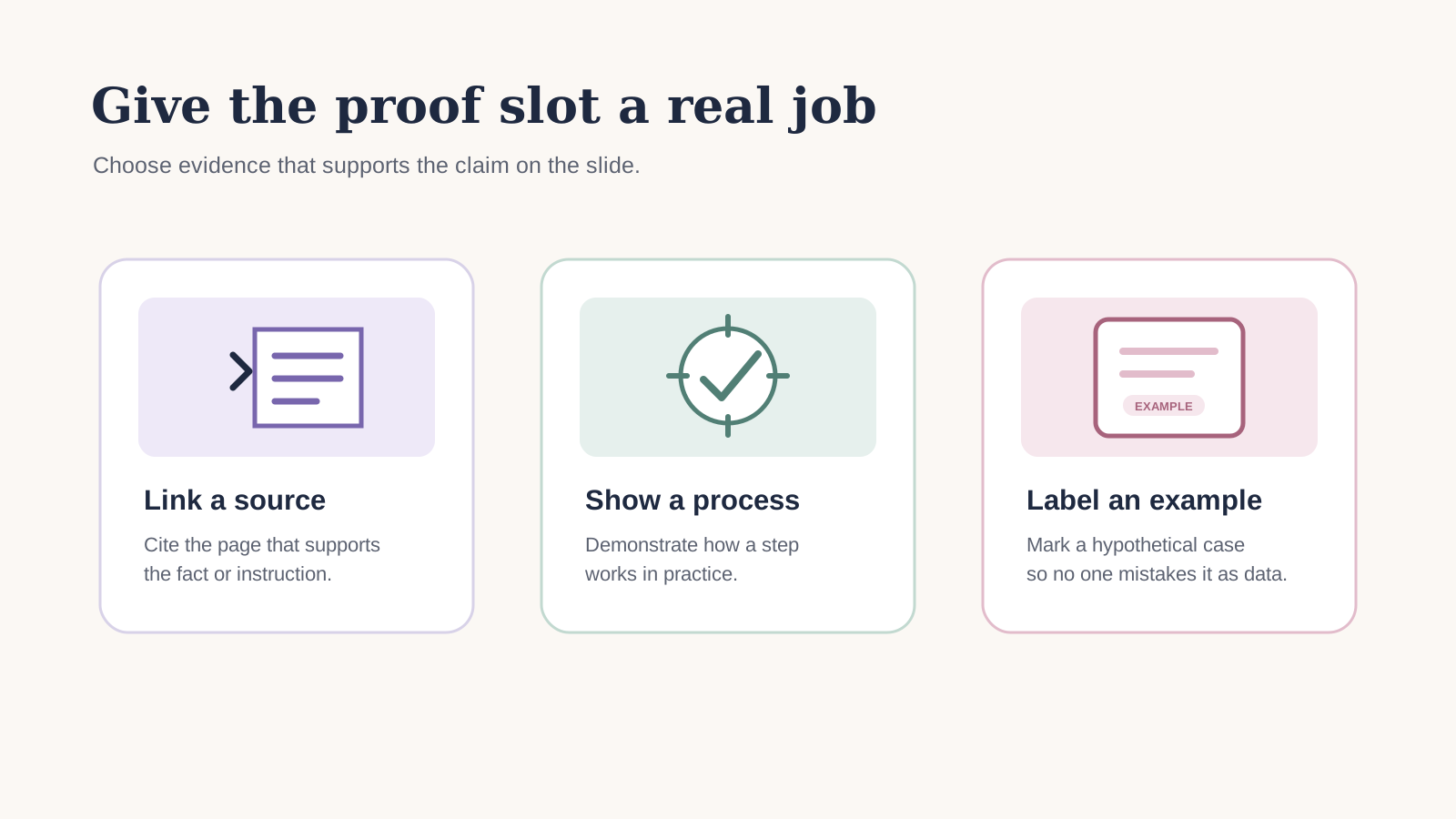
The proof slot shows the basis for a claim in the carousel. Use a source readers can check, a demonstration of the process, or an example labeled as an example. If the story has no evidence for a result, leave that claim out. Instead, use the slide for another useful step.
The proof slot should show why the advice is credible. Use a verifiable source, a demonstration of the process, or an example clearly labeled as hypothetical. A testimonial or performance claim needs an actual source and permission to use it.
For an educational post, proof could be a screenshot of the source material, a short demonstration, a before-and-after of the design process, or a citation in the caption. Keep the proof close to the claim it supports. If a slide says a platform allows a specific image format or item limit, link to the platform's current help page and check it again before publishing.
Do not use a quote-shaped line just to make a slide feel more convincing. A made-up customer sentence is still a fabricated testimonial even when no name is attached. A better visual might show the actual steps in a process or point readers to the public source that supports the advice.
In the bakery example, the proof slot works only if there is a real serving guide or a real demonstration to show. If neither exists, use the slide to explain what the reader should check, or use the space for another step. Do not present a made-up chart as business evidence.
How do you design the slides in Canva?
To design carousel slides in Canva, set the format and visual rules before building the pages. Write the story in order, keep each slide focused, and save a separate working copy for the client. Finally, preview each card at full size. Review the complete sequence in the publishing tool before you export.
Build the story before styling the cards. Set one canvas ratio for the full carousel, write the slide copy in order, and then apply a reusable design system. Instagram's Help Center says the chosen orientation applies across the items in a multi-image post; its image resolution guidance lists the supported photo proportions. Check the current guidance and your publishing tool before selecting exact export dimensions.
Use this workflow:
- Choose the format. Confirm the target platform and publishing method, then choose an allowed canvas ratio.
- Draft the seven cards. Put one thought on each card. If one card needs a paragraph, split or simplify it.
- Set the visual rules. Choose type sizes, colors, spacing, and image treatment that fit the client's brand.
- Build a working copy. Keep the reusable source file separate from the client version.
- Check the sequence. Read the cards in order, then look at each one by itself for context and legibility.
- Preview the crop. Confirm the first card and the full set in the publishing flow before sharing or scheduling.
The Social Media Manager Kit lists nine storytelling carousels that are editable in Canva, with five slides each. The public product preview shows a five-card sequence. Treat it as a starting layout; the seven roles in this guide are a planning structure that you can adapt to the story, not a claim about the kit's exact slide count.
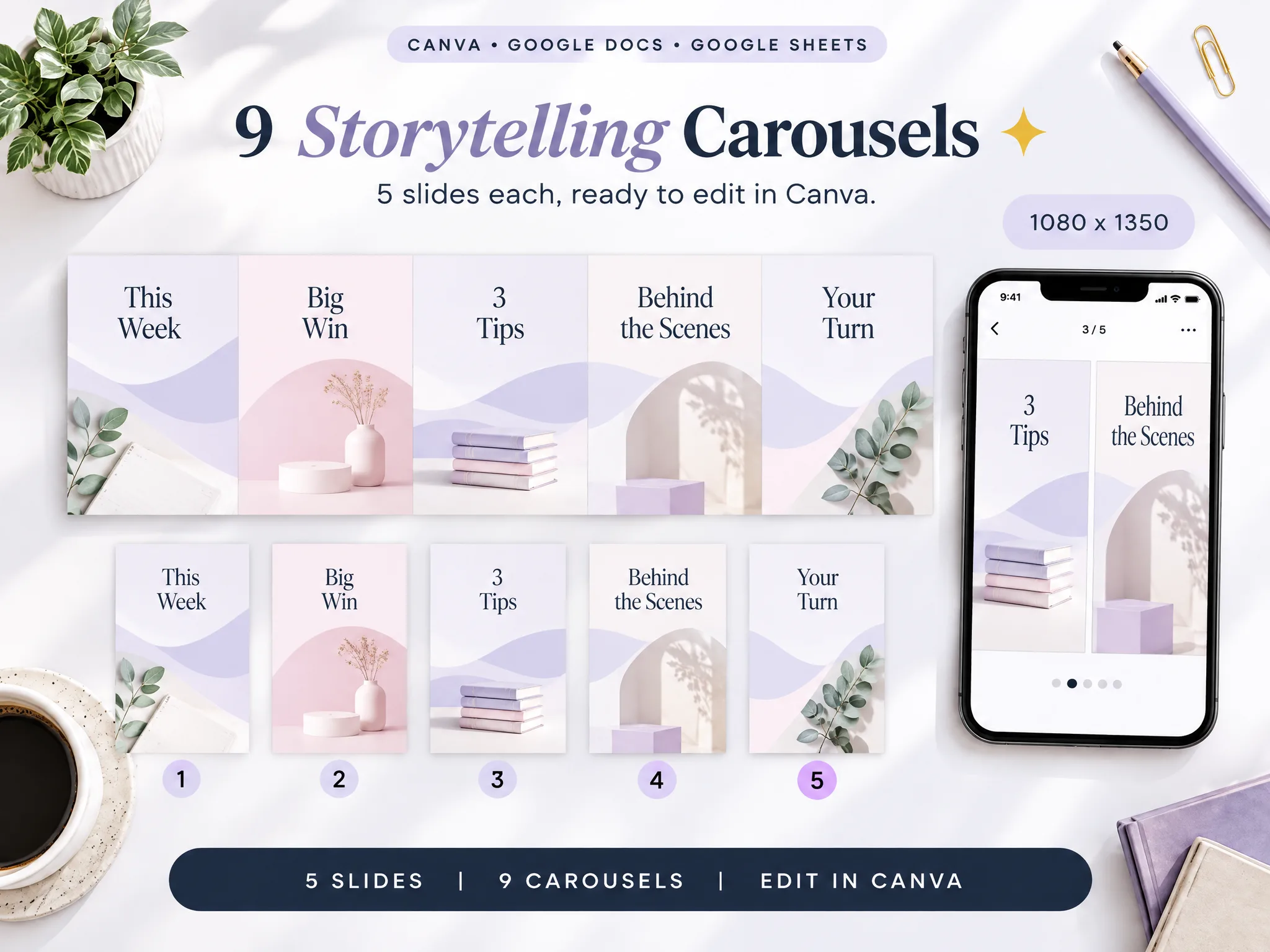
The preview is an illustrative product visual, not a capture of the delivered Canva file. For a detailed look at the files you will customize, the Social Media Manager Kit overview lists the bundle's client paperwork, planning files, and creative assets.
What should you check before exporting?
Review the carousel as a sequence and as individual slides. This catches different issues: a story may lose its thread when swiped through, while a single card may be too crowded or unclear on its own.
Use a short checklist:
- Does slide one identify the topic and intended reader?
- Does each card add a distinct point?
- Are names, dates, claims, and examples accurate for this client?
- Is the proof real, cited, and close to the claim?
- Does the final card offer one useful next step?
- Are fonts, contrast, image crops, and spelling checked at full size?
- Do all slides share the chosen orientation and ratio?
- Does the exported set match the preview in the publishing tool?
| Check | Why it matters | Pass condition |
|---|---|---|
| Story order | Keeps the sequence easy to follow | Each slide leads to the next |
| Copy and claims | Prevents errors and unsupported statements | Names, facts, and claims are checked |
| Evidence | Helps readers verify proof | Source or demonstration is real and clear |
| Crop and type | Protects legibility in the feed | Text and key details remain visible |
| Export preview | Catches publishing mismatches | Slides match the selected ratio and order |
Ask someone who did not write the post to read the slides in order when time allows. Ask them to explain the central point in their own words. If they cannot, the problem may be the sequence rather than the design.
What actually makes a storytelling carousel work?
A useful carousel carries one idea from the first card to the last. The seven roles help you draft that path, while source checks and a final preview keep the post tied to what the client can support.
Keep the evidence slot flexible. It can hold a citation, a demonstration, or a labeled example. It does not need to hold a review or a number. If the story depends on a customer result you cannot verify, change the story to explain the process or give the reader a practical step instead.
Store the outline, caption, design, and export where your team can find the approved version. A ready-made social media manager kit for client work can provide reusable Canva templates and planning files for that workflow. Keep a separate working copy for every client's content, and confirm that the final post uses the right brand and source material.
Why trust this article
This guide is published by the Social Media Manager Kit team at Cosmo Suite. The kit's stated carousel count and slide count were checked against its live product preview on 26 October 2026. Instagram's linked Help Center pages describe carousel publishing and photo proportions; platform controls can change, so confirm the current settings before export. The bakery example is hypothetical and makes no performance claim.
Where Social Media Manager Kit fits
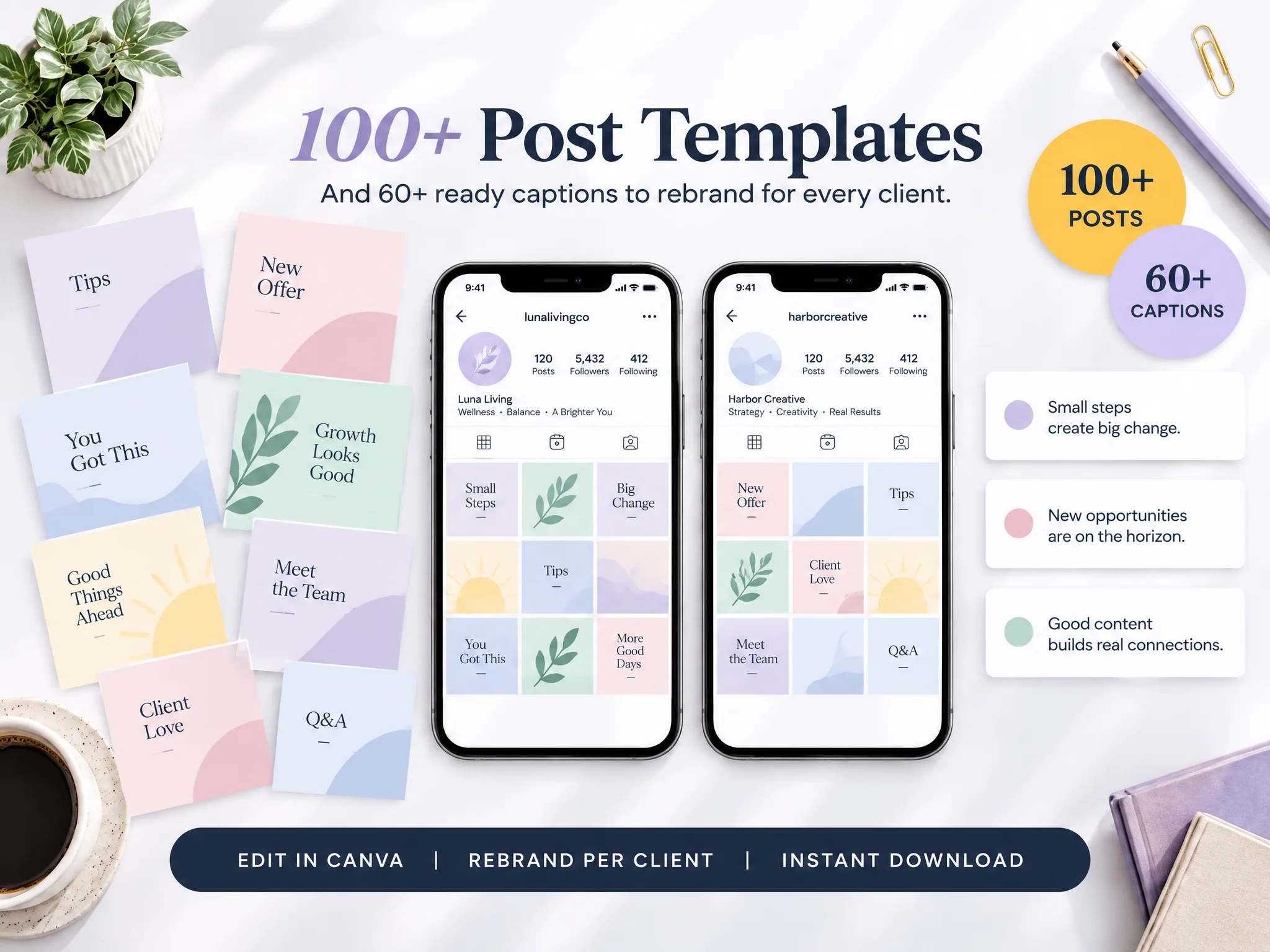
Social Media Manager Kit includes Canva content assets, including nine storytelling carousels with five slides each, along with post templates, captions, and planning files. A reusable set can give you a place to start when the service includes creating carousel content for clients.
It does not write or fact-check the post for you, verify a client's claims, or publish the finished carousel. You still choose the story, check the evidence, adapt the design, and schedule or publish it through the platform you use.
If reusable starting files would help with that work, see the Social Media Manager Kit's editable Canva carousel and content templates. Check the contents list against your service before choosing a kit.
Frequently asked questions
What should a storytelling carousel include?
Give each slide one job. A seven-slide version can use a hook, the problem, a turn, two practical steps, a proof or demonstration slide, and a call to action. The sequence is a starting structure. Change it when the story needs fewer steps or a different kind of evidence.
How many slides should an Instagram carousel have?
Use as many slides as the story needs. Instagram's Help Center allows up to 20 photos and videos in one carousel, but a smaller sequence can be easier to follow. Check the current limit and crop in the account and publishing tool you use before exporting.
What size should carousel slides be?
Instagram supports several feed photo proportions, and a carousel uses one orientation across its slides. Choose a canvas size that fits the publishing path you use, keep every slide in that same ratio, and preview the crop before publishing. The platform's current image guidance is the source to check for exact dimensions.
What can I use as proof in a carousel?
Use evidence you can support, such as a demonstration, a cited source, or a clearly labeled example. A customer quote, result, or testimonial needs permission and a real source. If you do not have one, leave that kind of proof out.
Can I use a carousel template for different clients?
Yes. Keep the slide roles, then adapt the wording, visual identity, examples, and call to action for each client. Make a separate working copy so the original remains ready for the next project.
How do I make a carousel template in Canva?
Choose one slide ratio, create a page for each role in the story, and save the set as a reusable design. Replace sample text and images with client-approved material, then review every slide at full size before export.
Should every carousel end with a call to action?
A clear next step helps when the reader should do something after the story, such as save a checklist or visit a resource. Keep the request relevant and specific. An educational post can end with its takeaway when another action would feel forced.