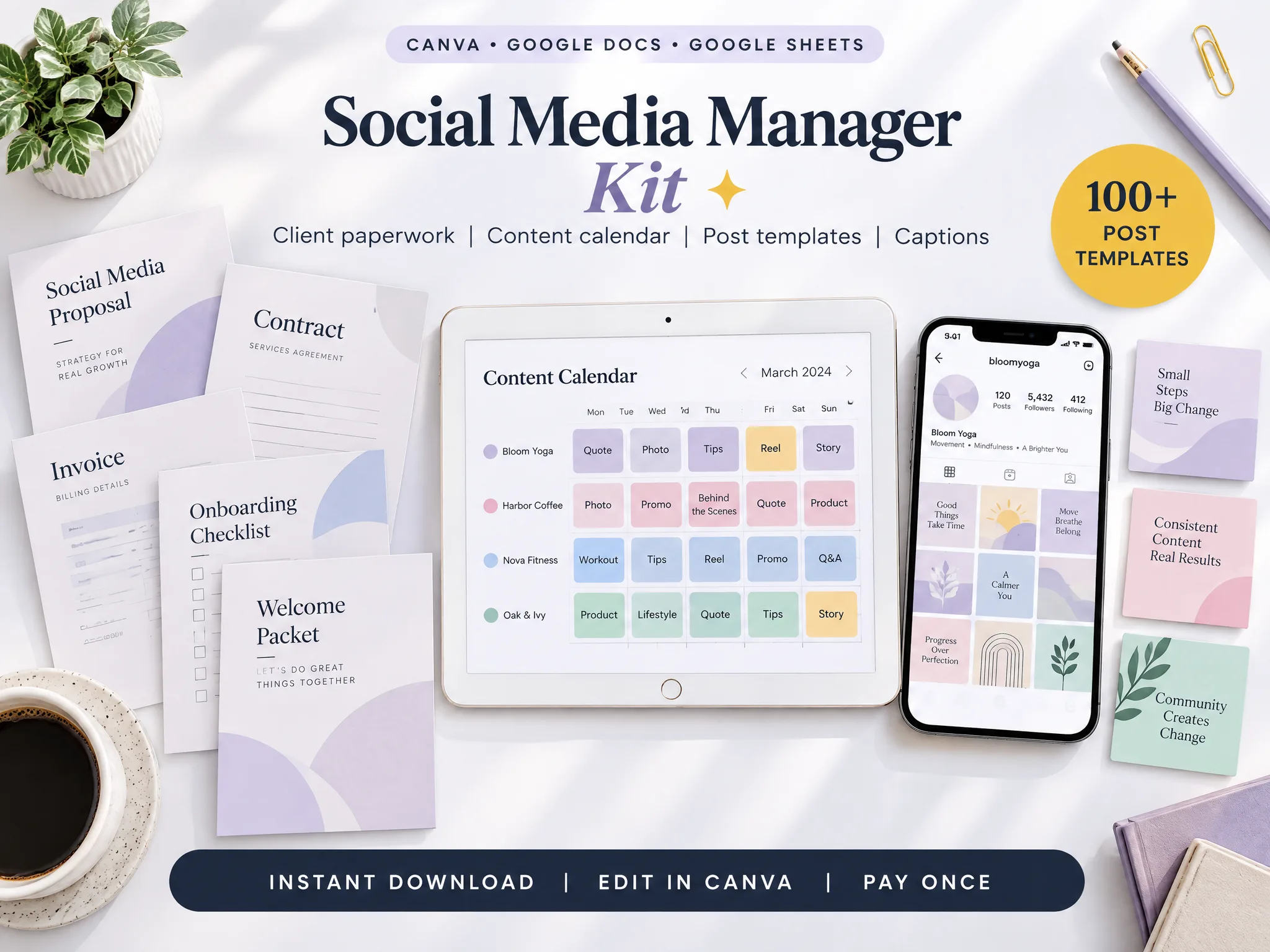
What Is a Social Media Manager Kit? A File-by-File Guide
social media manager kit: see which paperwork, planning files, and Canva assets belong together, then set them up in a repeatable order for each client.
By Social Media Manager Kit by Cosmo Suite · Editorial policy
Published · 8 min read
A social media manager kit is a reusable set of files for the work around a client account: paperwork, planning documents, and content assets. It gives a solo manager or small agency a starting point for each new client instead of rebuilding every file from a blank page.
A kit should cover the work you sell in an order you can repeat. The Social Media Manager Kit is one example of a bundle built around client paperwork, planning, and content assets. This guide maps those files from discovery through content creation, then explains where a template kit stops and publishing begins.
Key Takeaways
- A social media manager kit combines client paperwork, planning files, and content assets.
- Set the files up in client order: scope the work, onboard, plan, create, then close.
- A content calendar organizes what is planned; a publishing tool handles scheduling.
- Make a separate working copy for each client and check sharing access before you send it.
A social media manager kit should follow the client lifecycle
A social media manager kit works best when its files follow the way client work moves: agree on the scope, set up the account, plan the content, create the assets, and wrap up the engagement. That order helps you find the next file without sorting through a folder of unrelated downloads.
This approach also separates jobs that often get mixed together. A proposal explains the work you plan to do. A content calendar tracks what is planned for each date. Canva templates help you create the visuals. Those files can support one workflow, but they do not all do the same job.
For example, a content calendar can show that a post is planned for next week. It does not confirm that the client has approved it or that it has been scheduled in a publishing platform. If the client asks to move the post, update the planned date and the publishing tool separately. Keep those steps visible in the tool you use for them. A kit is the set of working materials around the service, not a replacement for every tool in it.
What belongs in a social media manager kit?
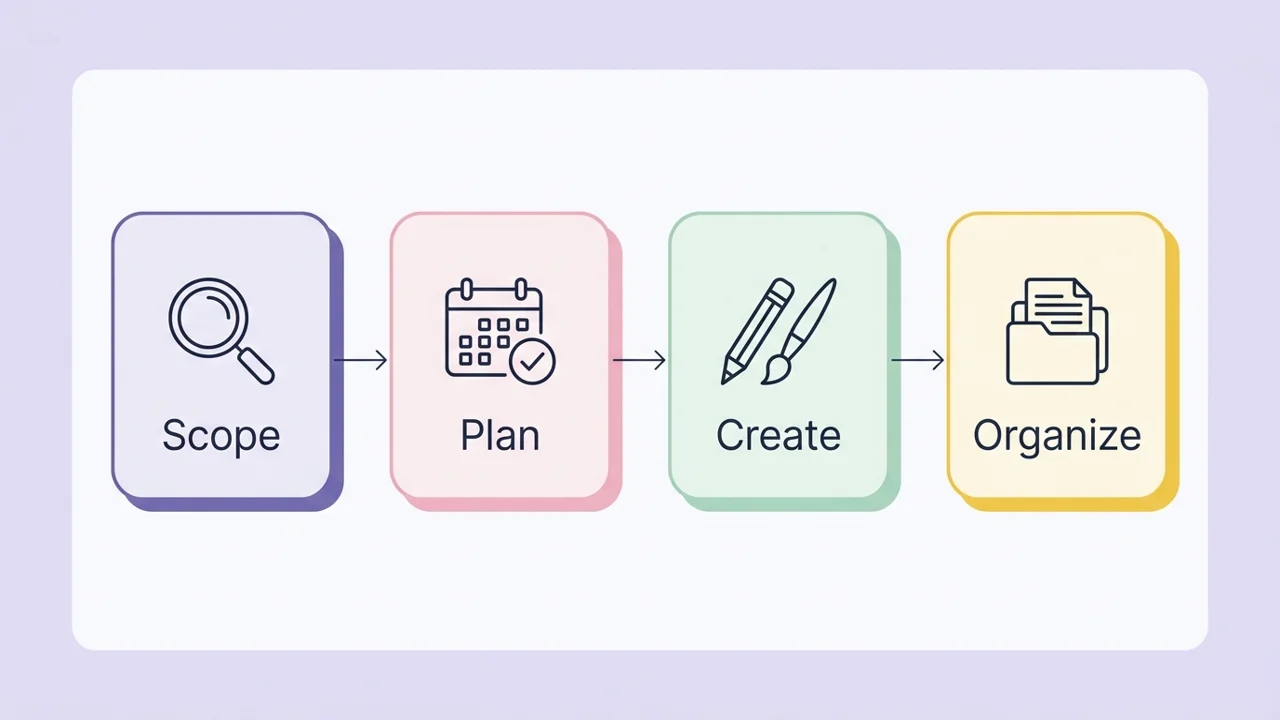
A social media manager kit can include files for five stages of client work: sales, setup, planning, creation, and wrap-up. Use this table as a checklist, then remove anything that does not match the service you provide.
| Client stage | Useful files | Best for |
|---|---|---|
| Scope the work | Discovery call checklist, proposal, services and pricing portfolio, contract file to edit | Defining platforms and deliverables before work begins |
| Plan content | Social strategy, brand guidelines, content calendar, post planner, hashtag planner | Turning client goals into a visible plan |
| Create assets | Canva post templates, captions, storytelling carousels | Building and adapting content for each client |
| Organize work | Clearly named client files and working copies | Keeping each client’s plan and creative materials easy to find |
The right set depends on what the client hired you to do. If you manage posts but the client supplies the designs, a large design library may not be your main need. If you create the visuals, reusable layouts and a brand-guidelines file may be part of the weekly workflow. Start with the deliverables in your agreement, then choose files that support each one.
An all-in-one bundle can include more than one person needs. Treat its contents list as a menu. The proposal, calendar, post planner, and templates should have a clear job in your process; extra files do not make a workflow better if nobody knows where to use them.
Start the client relationship with clear paperwork
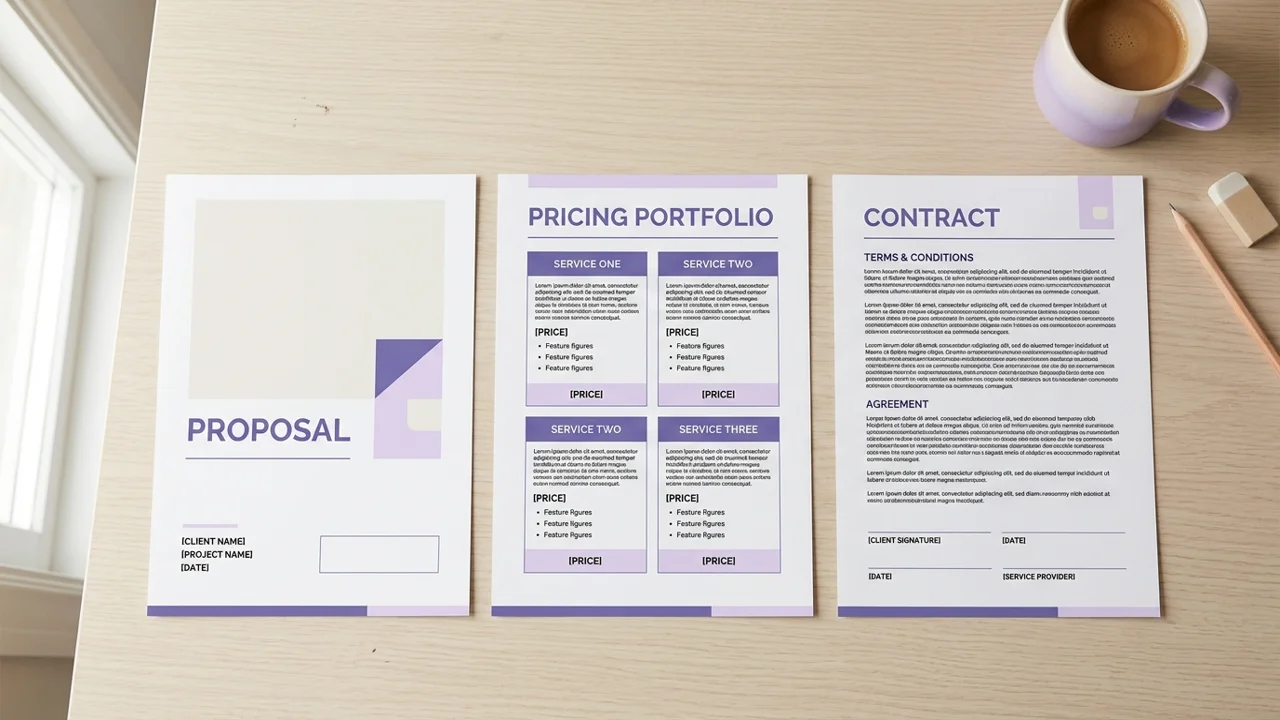
Start with the files that define the work. A discovery call checklist helps you map the client’s goals and channels. A proposal gives you a place to describe the services you plan to provide. The kit also lists a contract file to edit. Keep these scope materials distinct from the content calendar and creative files.
Use the discovery notes to shape a strategy and brand guidelines. These give the content calendar a direction before you start filling dates. The order can vary by service, but writing down the scope first helps you choose which planning and design files belong in the working set.
The Social Media Manager Kit lists a proposal, contract file, and discovery call checklist. Use the files that fit your service and adapt them to your own process.
Plan each client's content before making posts
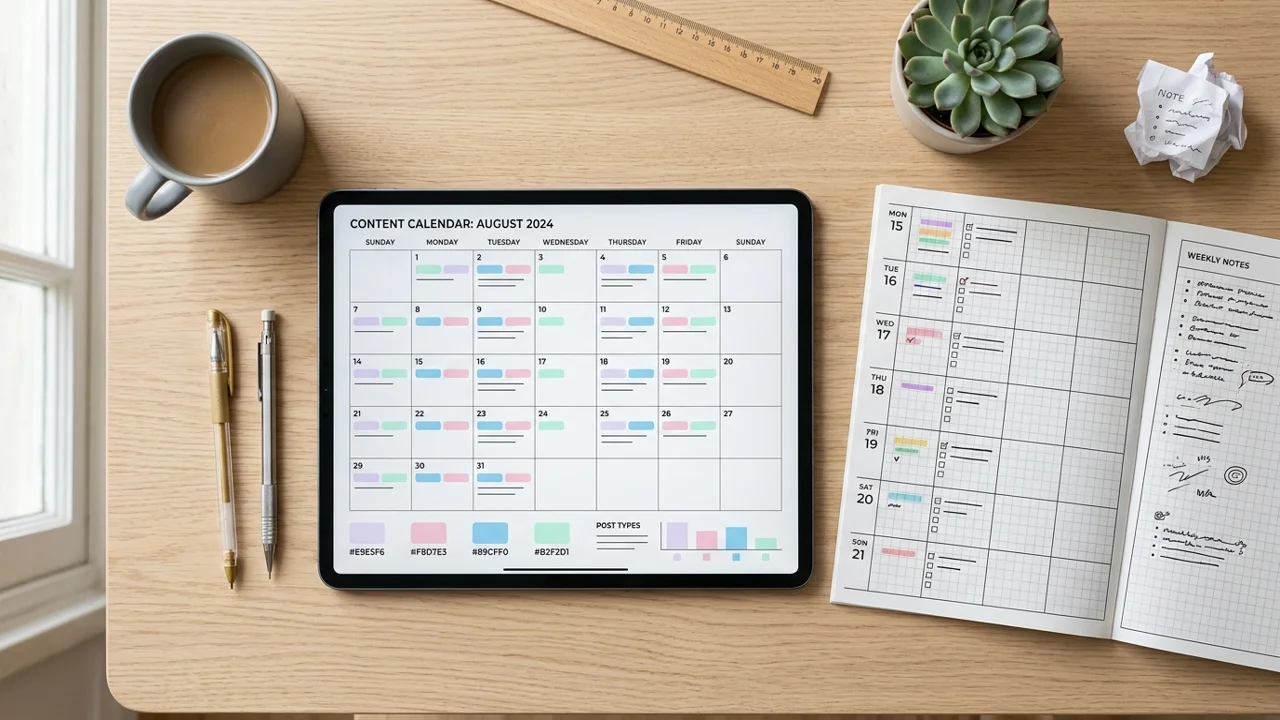
Plan the content before opening a design template. A strategy document sets the direction. Brand guidelines collect the visual and voice choices. A content calendar places planned content across dates, and a post planner keeps the details for each individual post together.
A calendar for one client might track the date, channel, format, topic, draft status, asset location, and next action. These are suggested fields, not a universal schema. Add only the columns you use. For instance, when one client uses several platforms, a format column can show whether each planned item is a video, carousel, or static post. If deadlines move often, a status and next-action column can show where the work is waiting.
Keep a separate view for each client so names, deadlines, and drafts do not blur together. You can use separate files or clearly labeled tabs in a master workbook. Before sharing, check the access level on the file or folder. Google Drive's sharing guide explains that viewers, commenters, and editors have different permissions, and that shared-folder permissions carry down to the items inside it. Check access again when you move a file into a shared folder, since its parent folder can affect who can open it.
A hashtag planner and competitor template can support research around the plan. They do not replace the strategy or tell you what to publish. Use them to collect material, then decide what fits the client’s audience and offer before filling dates on the calendar.
The kit lists a content calendar, post planner, hashtag planner, strategy, brand guidelines, and competitor template. Its content calendar and post planning files for client work can sit beside the copy and assets you create for each account.
Make repeatable posts look like each client's brand
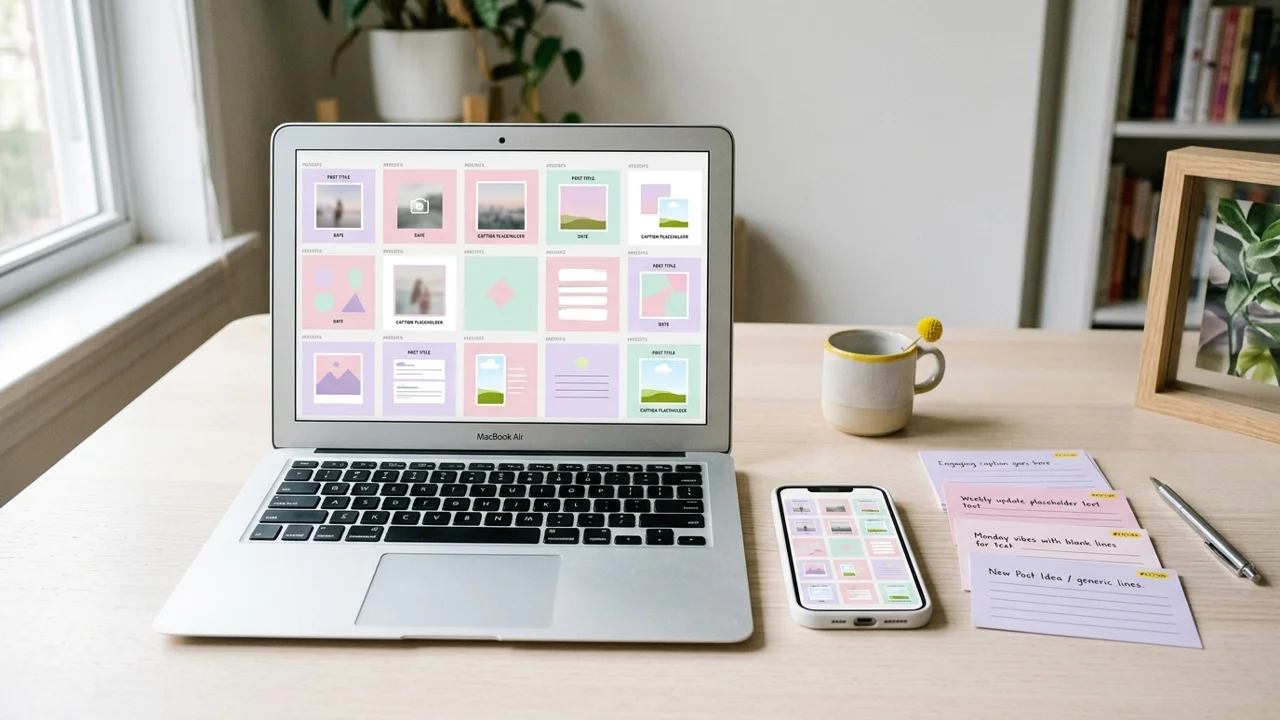
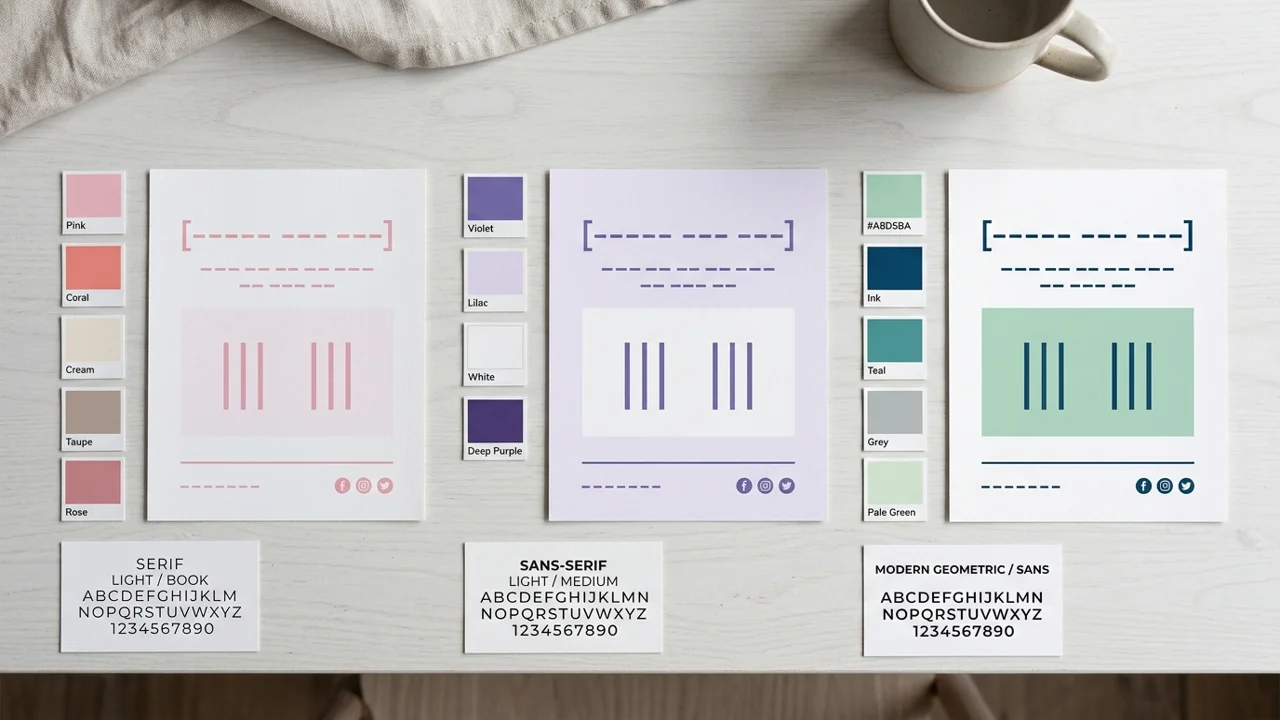
Reusable designs save you from starting every post on a blank page, but each client still needs a distinct look. Begin with the client's logo, colors, fonts, photos, and writing style. Canva's Brand Kit guide shows how to group brand assets. Then adapt a template before you draft the caption or export the asset.
Canva describes Brand Kits as a place to keep brand logos, colors, fonts, and other assets. Its Brand Kit setup guide also explains that features and access depend on account type and permissions. Check those details in your account before promising a specific setup to a client.
A simple rebrand pass can look like this:
- Make a working copy of the template for the client.
- Replace logos, colors, fonts, and photos with approved client assets.
- Adjust the wording so it fits the client's offer and audience.
- Check the design at its intended size and review every text element.
- Save the export and working file with a name that identifies the client and post.
The Social Media Manager Kit lists 100+ Canva post templates, 60+ captions, and 9 storytelling carousels. Those are starting points for adapting content; they do not guarantee engagement or remove the need to check whether a post fits the client's voice. Its editable Canva templates and captions for client content are useful when design and copy are part of your service.
What actually keeps the client workflow usable
A useful kit gives you a repeatable way to keep one client's decisions, calendar, and assets together, then move each item to its next step as the work changes.
Create one working home per client. Keep the original files separate from the copies you adapt. Use consistent names for drafts and exports, and leave a clear status or next action for anything still in progress. If someone else needs to review a post, send them the right file with the access level they need. Google Drive's guide explains how access applies to files and shared folders. Do not share a master folder just because it is convenient.
Planning and publishing happen in different places. Your calendar can hold the planned date and draft status. Your publishing platform is where you schedule and confirm the post. Meta's tutorial on scheduling with Business Suite shows this as a separate step for Facebook and Instagram. The video is from 2022, so use it as an example of the distinction, not as current instructions for its interface.
Keep each client’s working copies clearly named and separate from the original templates. A consistent folder and file naming pattern makes it easier to find the current calendar, draft, and creative asset. Check the file-sharing permissions before you share any working copy.
Why trust this article
This article is published by the Social Media Manager Kit team at Cosmo Suite. Fact-check: Product names and counts were checked against the live contents list on 19 October 2026. The checklist groups the listed files by client stage; it does not test the files or measure client outcomes. Canva and Google Drive details were checked against their linked help pages. The Meta tutorial is dated 2022, so it serves only as an example of planning and scheduling as separate steps. This guide makes no claims about industry productivity, customer results, or hours saved.
Where Social Media Manager Kit fits
Social Media Manager Kit is a downloadable set of client paperwork, planning files, and Canva content assets for freelance social media managers and small agencies. Its listed contents include a proposal, contract file, discovery call checklist, a content calendar, a post planner, brand guidelines, 100+ post templates, 60+ captions, and storytelling carousels.
It may fit if you want editable starting files to adapt per client. It is not a scheduling platform, a client portal, or a managed social media service. You still set the scope, customize the files, secure the right permissions, prepare the creative, and publish through the tools you choose.
If that is the kind of working set you need, see the Social Media Manager Kit's client paperwork, planners, and Canva templates. Use the contents list to check that the files match your services before you choose a kit.
Frequently asked questions
What should be in a social media manager kit?
A useful kit covers the client relationship, the content plan, and reusable creative work. That can mean discovery materials, a proposal, a contract file to edit, a client calendar and post planner, brand guidelines, and editable post templates and captions. Choose files that match your service. A manager who does not design posts may need fewer creative templates.
What files do I need before starting with a new client?
Start with discovery notes and a proposal to frame the work. The kit also lists a contract file to edit. Once you know the client’s goals, use those details to shape the strategy, brand guidelines, and content calendar.
Does a social media manager kit schedule posts?
Usually, a template kit helps you prepare and organize posts. It does not necessarily publish them. Check the contents list. A calendar or post planner is where you plan the work; a separate platform or scheduler is where you confirm and schedule publication.
Can I use the same kit for multiple clients?
Yes. Use the same starting structure, then make a separate working copy for each client. Replace the brand details, goals, platforms, and content before sharing or publishing. Keep the original templates unchanged so you have a clean starting point for the next account.
Should each client have a separate content calendar?
For a solo manager or small agency, a separate client view makes ownership and deadlines easier to scan. You can still keep those views in one master workbook if each client has a clearly named tab and the sharing permissions fit the account. Avoid exposing one client's material to another.
Do I need Canva Pro to edit social media templates?
Not always. Check the specific template and the assets it uses in your own Canva account. Canva's plan and access options can affect which Brand Kit features are available, and some design elements may require a paid plan. Replace unavailable elements before sending a finished design to a client.
What is the difference between a content calendar and a post planner?
A content calendar gives you the publishing plan across dates, clients, or channels. A post planner holds the details for one post, such as its goal, draft, creative asset, status, and next step. They work together: the calendar shows when a post belongs, and the planner helps move it toward ready.